Send paper mail from Claude in two minutes.
Add PaperAgent from Claude’s directory once. After that, sending a letter is just asking.
Needs a signed-in Claude account. On Team and Enterprise, an Owner adds PaperAgent for the organisation first.
- 01ADD
Add PaperAgent to Claude
Open PaperAgent in Claude’s directory and click Connect to Claude. Already shows Connected? Go on to step 2.
Add to Claude (opens in a new tab)PaperAgent’s listing in Claude’s connector directory; the pointer clicks Connect to Claude.Click Connect to Claude. - 02START
Start your letter
In a new chat, check that PaperAgent is on under + → Connectors. Then say what to mail. When Claude asks, choose Always allow.
Open Claude (opens in a new tab)In Claude, the plus menu opens and Connectors shows PaperAgent switched on; then a request to mail a letter is typed and sent.PaperAgent on under Connectors, then ask. - 03SIGN IN
Sign in when Claude asks
The first time Claude needs your PaperAgent account, it shows Connect. Click it, enter your email, then the 6-digit code we send you. Every letter is tied to a verified sender, which keeps fraud out. New here? We also ask for your return address, once.
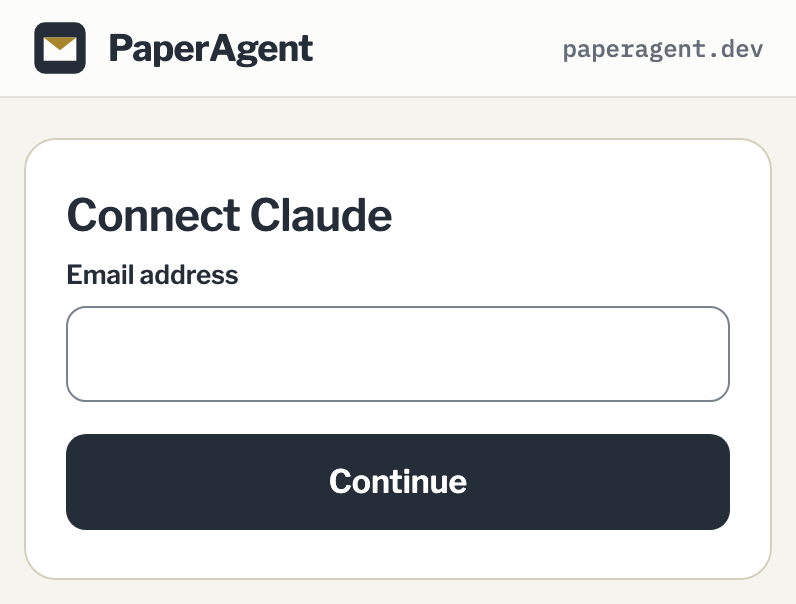
Your email, then the code from your inbox.

That’s it — PaperAgent takes it from here.
One connector, one sign-in, and your first letter goes out within one business day.
Using another MCP client? Its address is https://paperagent.dev/mcp
The manual setup, as a custom connector, is at /connect/claude. The tools, what each one costs you and what it refuses, are on the docs page.